Make an invoice, record payment, print or share it on WhatsApp and email.
Step-by-step
- Start an invoice
Now let's create a sales invoice. Click Create Sales Invoice. The invoice number and date are filled automatically.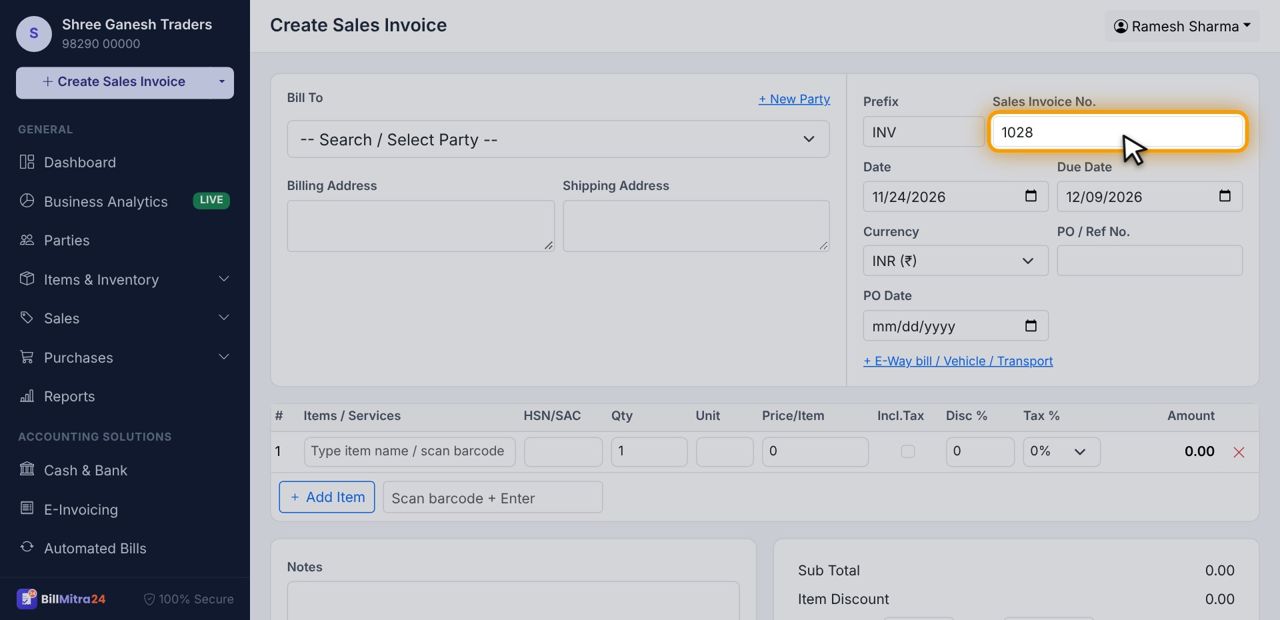
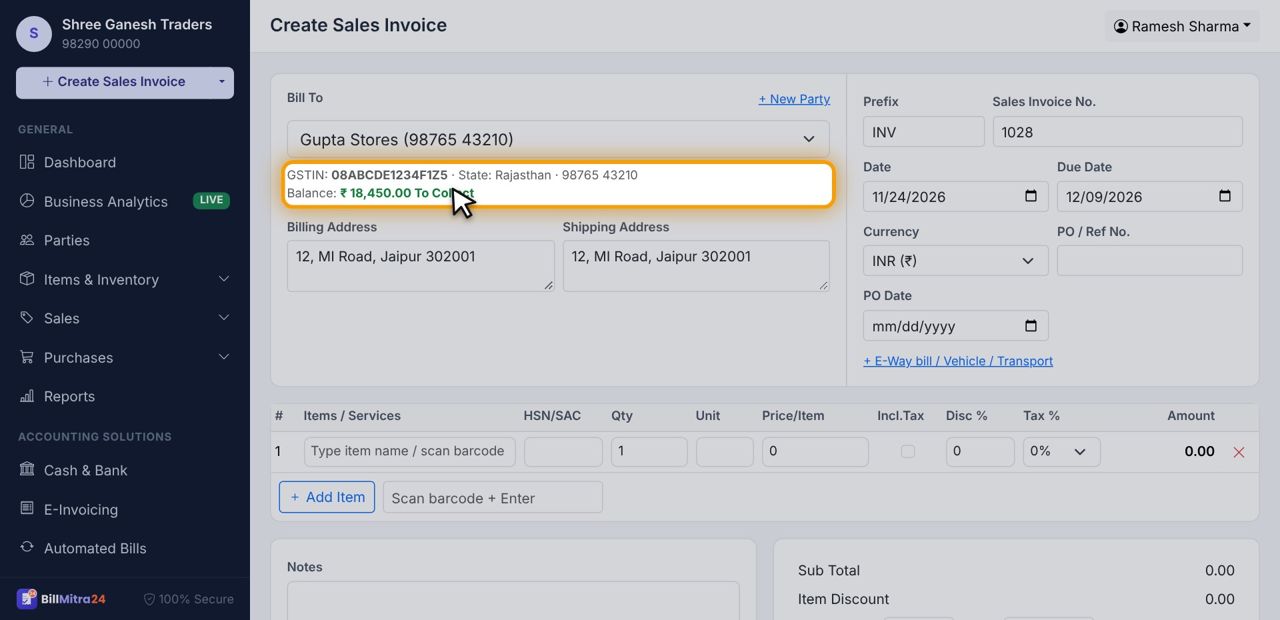
- Select the party. Its GSTIN, state, balance and address appear, and the due date is set from the credit days.
- Add items
In the items table type the item name and pick it. HSN, price and GST rate are filled from the item. Enter the quantity.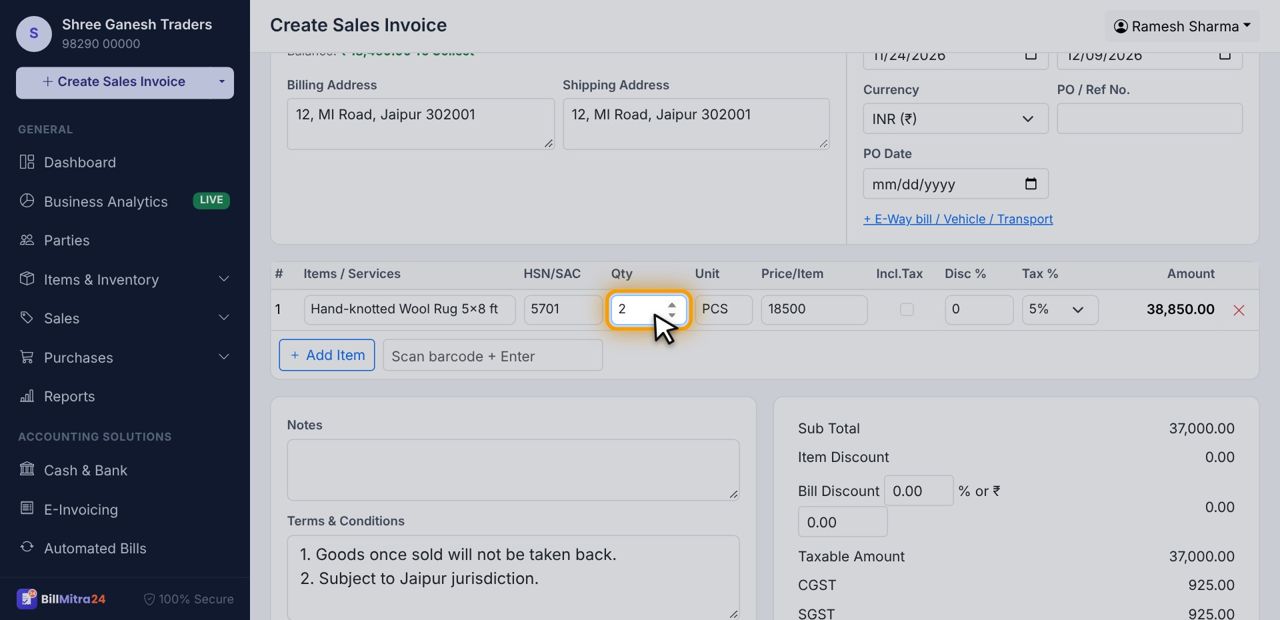
- Click Add Item for more lines, or scan a barcode and press Enter to add it instantly.
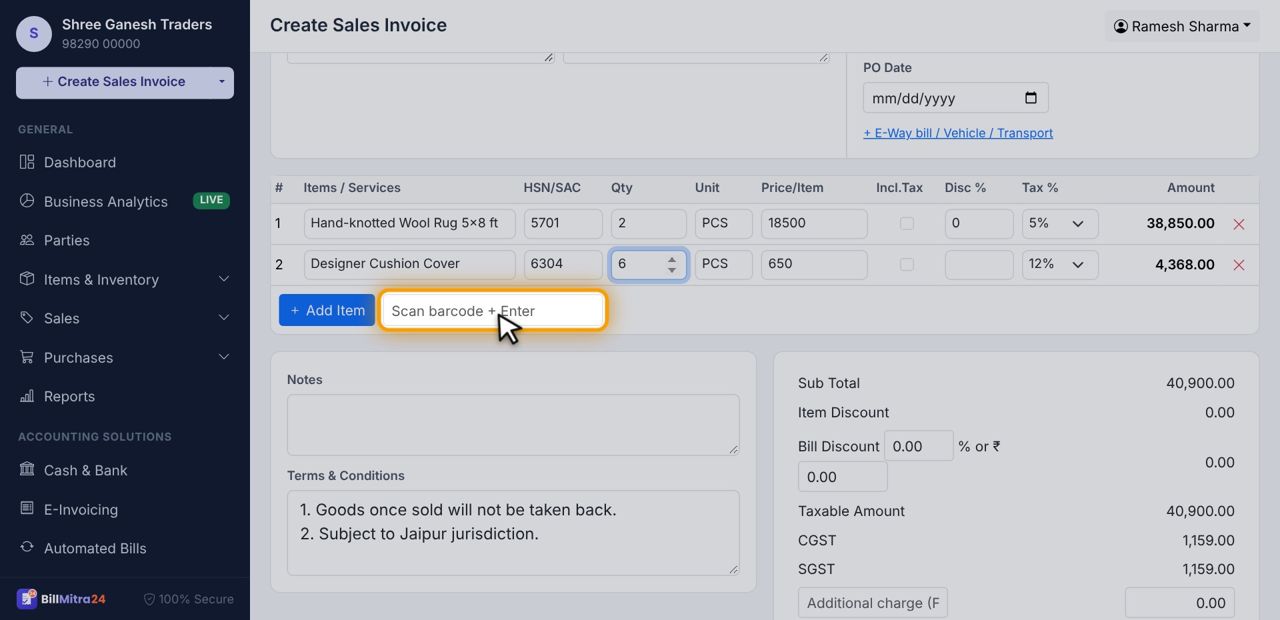
- The totals are calculated automatically: discount, taxable amount, CGST and SGST for the same state, or IGST for another state, round off and the grand total.
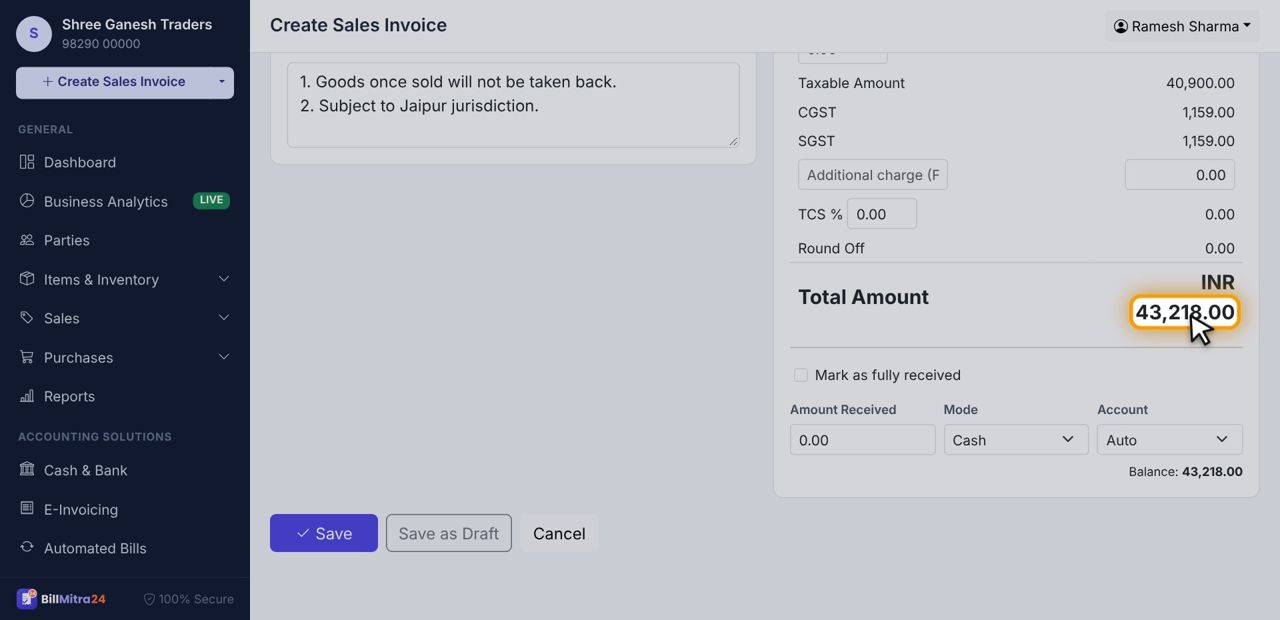
- Payment & save
If the customer paid now, enter the amount received and payment mode, or tick Fully paid. Then click Save.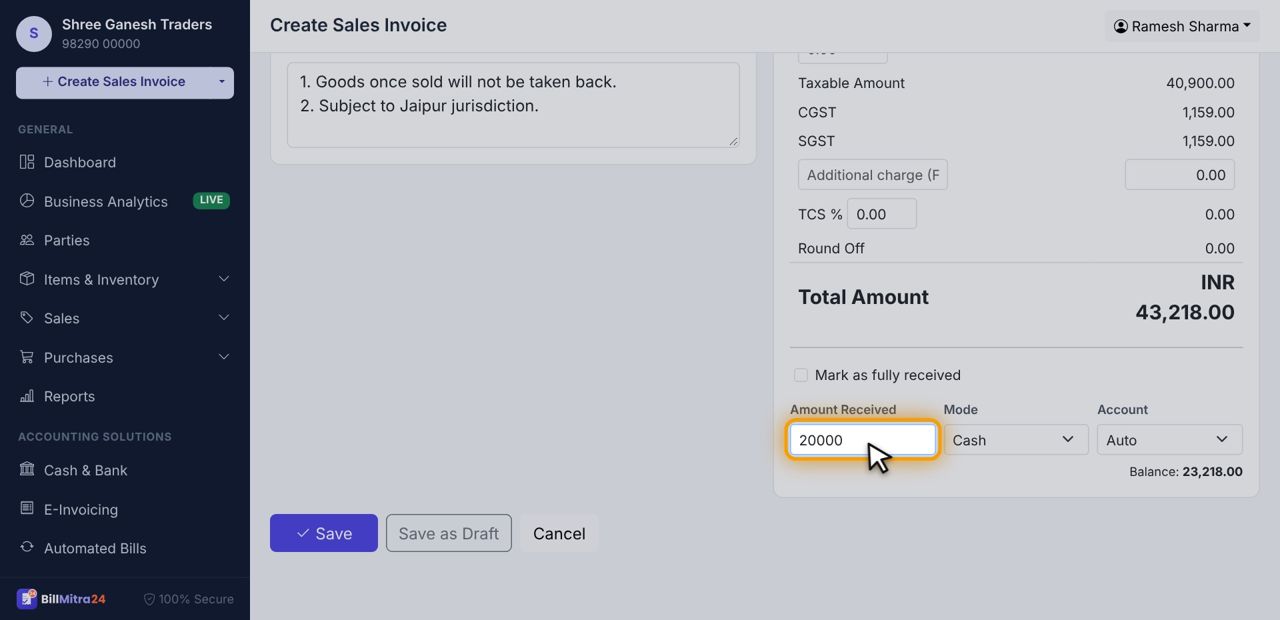
- Print & share
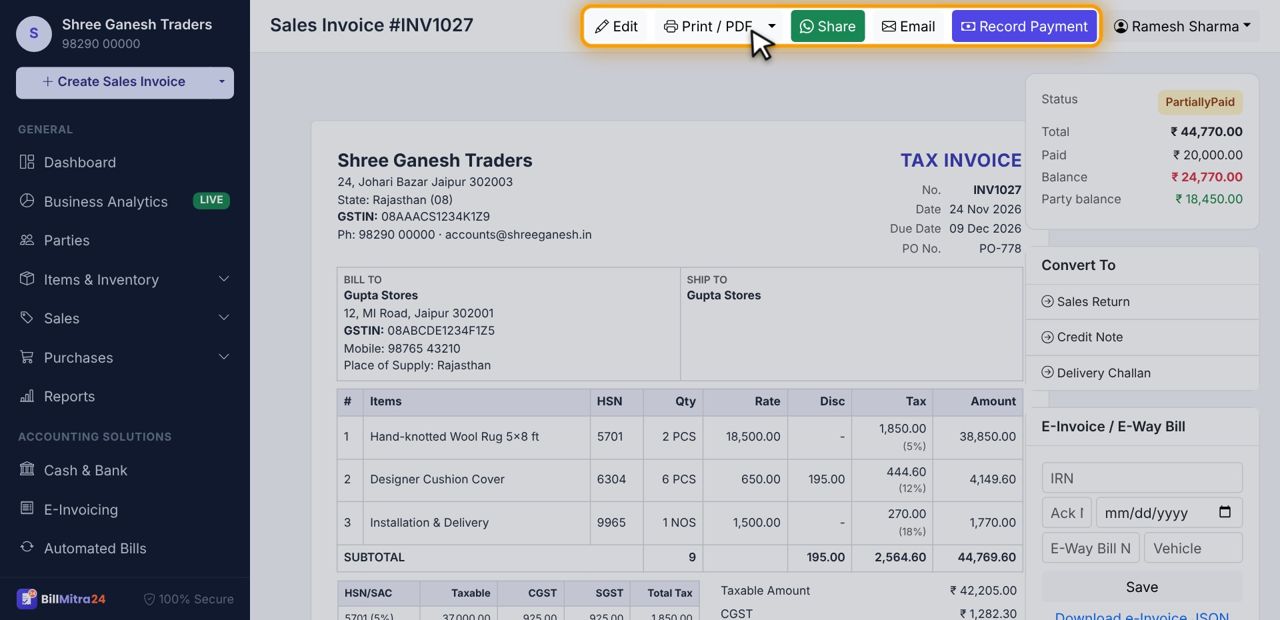
The saved invoice opens. Change the design from the Print menu and print it or save it as PDF.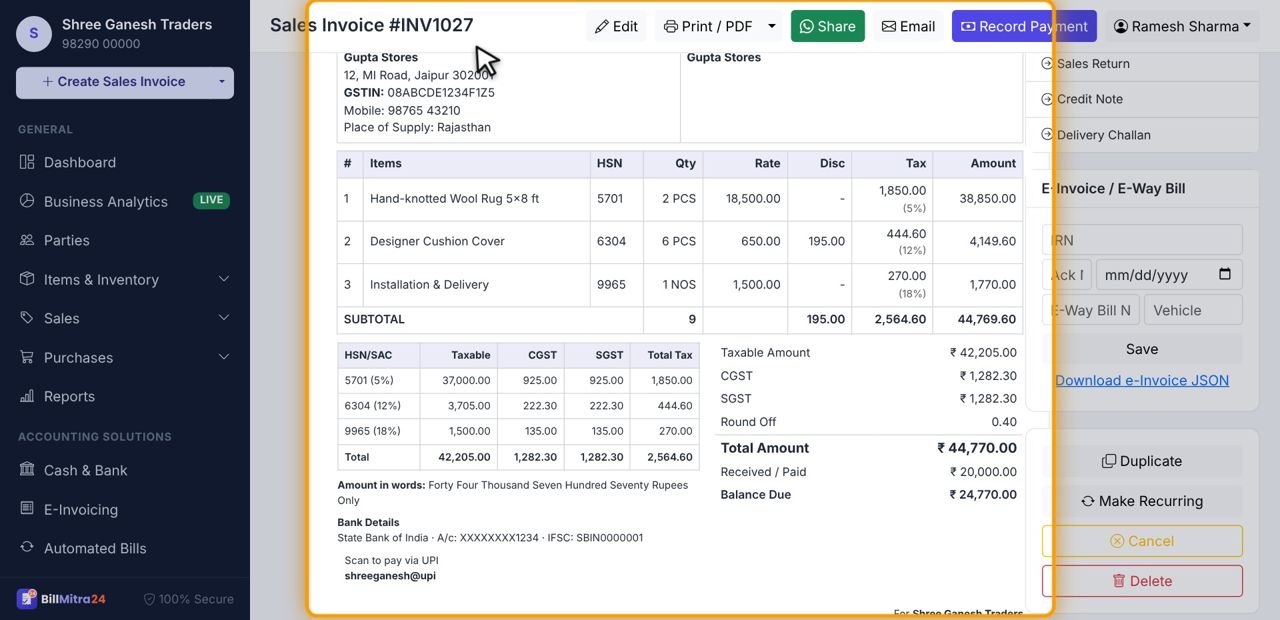
- Click Share to send it on WhatsApp with a secure link, or Email to send it to the customer's email. Record Payment adds a later payment against this invoice.
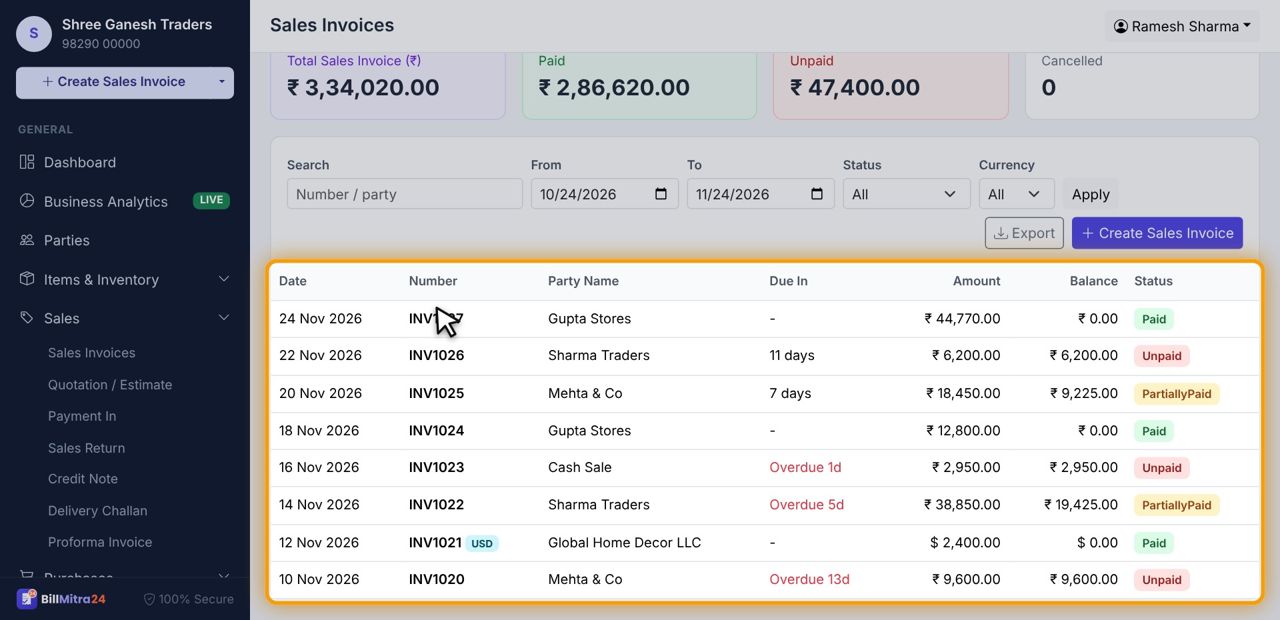
- For export customers create the invoice in dollars or euros. An admin can also make a copy of the same invoice number in rupees.
Tips
- Convert a quotation or delivery challan to an invoice in one click.
- Drafts are not counted in stock or accounts until saved.